Setting up Windows XP to connect with True Vine Online
            If you are not sure about ANY of the following PHONE 1-877-878-3846
 

How to Create a Dial-Up Connection in Windows XP
  • Operating System(s): Windows XP 
  • Application: Microsoft Dial-Up Networking 


Requirements
  • You need an account with True Vine Online
  • You need your assigned dial in username which was emailed to you by True Vine after you signed up
  • For assistance phone 1-877-878-3846
 
How to Create a Dial-Up Connection in Windows XP
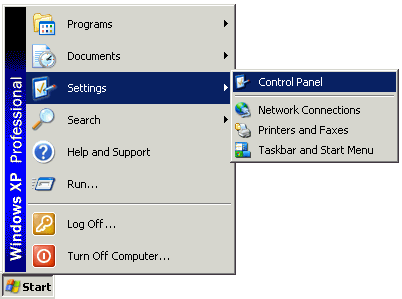
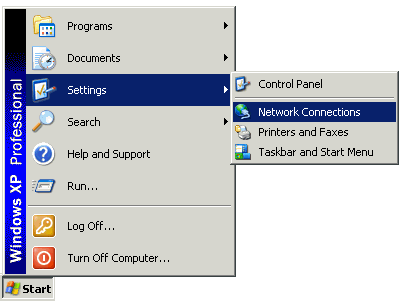
  • From the Start menu, choose Control Panel


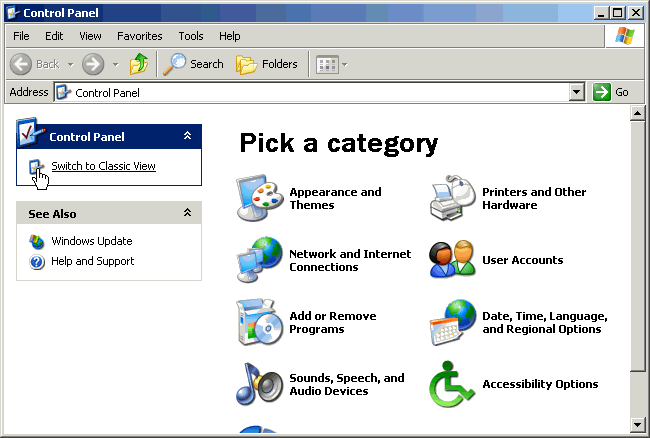
    Click the Switch to Classic View icon.


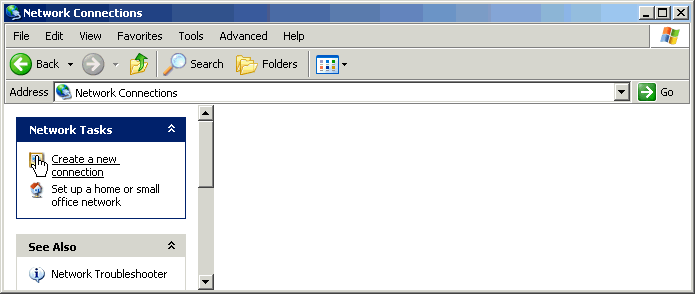
  • Double-click the Network Connections icon. 


  •  
     
     
  • Click the Create a new connection icon. 

  •  


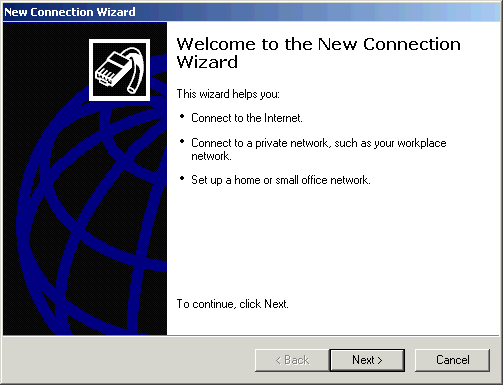
  • Click the Next button. 

  •  

  •  


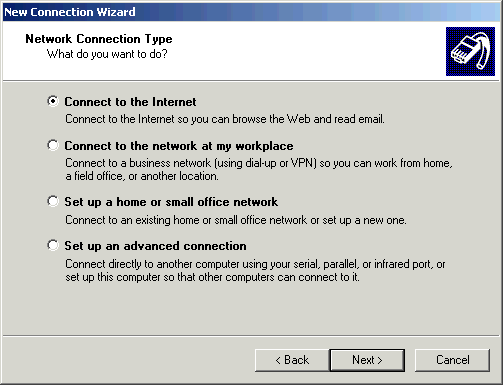
  • Select Connect to the Internet
    • Click the Next button.

 
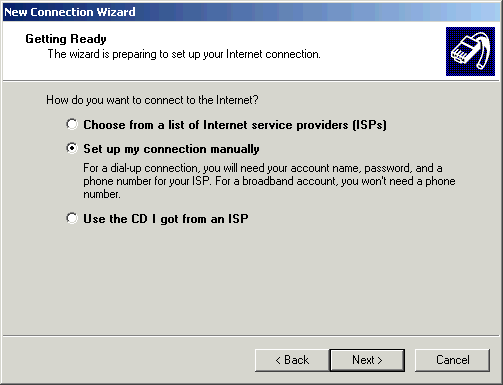
  • Select Set up my connection manually
  • Click the Next button. 


  •  


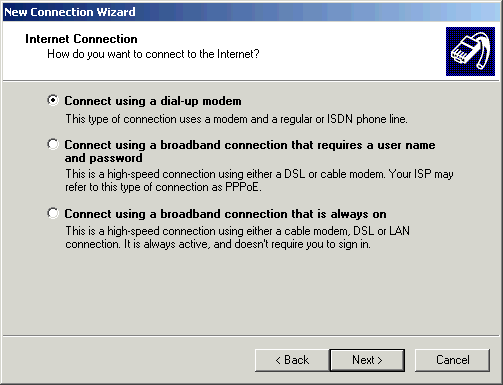
  • Select Connect using a dial-up modem
  • Click the Next button. 


  •  


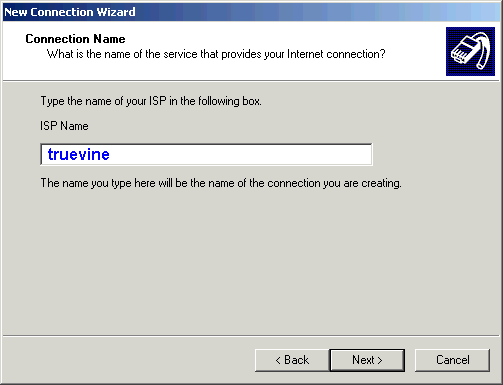
  • In the ISP Name field, type a name to identify your connection (ie. truevine). 
  • Click the Next button. 


  •  


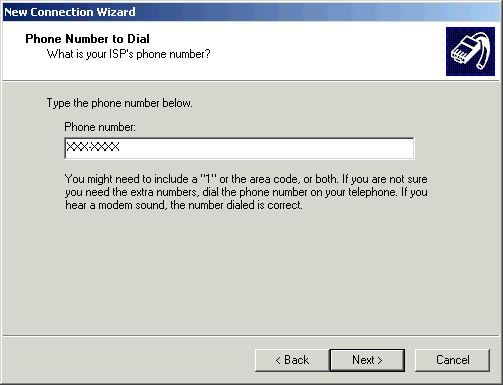
  • In the Phone number field, type your local access number exactly as it needs to be dialed. If you do not know what number to use CLICK HERE.

  •  


    Note: If you require 10-digit dialing in order to access a local number, make sure to include your area code.

    Note: Remember to check with your local telephone company to make sure that the number you choose is a local toll-free call.

  • Click the Next button. 


  •  
     
     
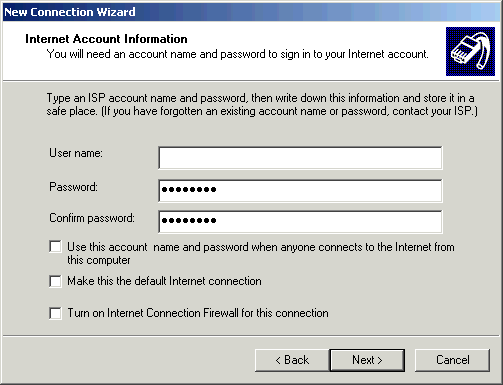
  • In the User name field, type your Dial In Username which was ASSIGNED to you after you signed up. (This is NOT your email address)

  • If you are unsure check the email you received confirming your signup or phone 1877-878-3846
     
  • In the Password field, type your password. 
  • In the Confirm password field, type your password. 
  • CHECK  the box next to Make this the default Internet connection
  • UN-check the box next to Turn on Internet Connection Firewall for this connection
  • Click the Next button. 


  •  


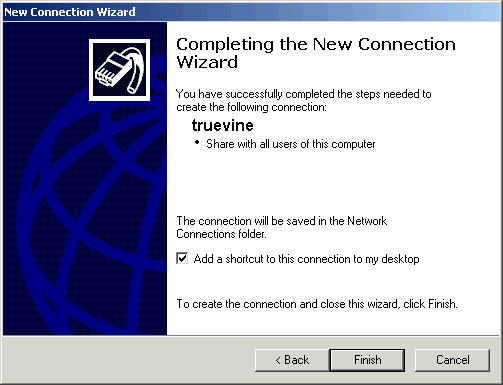
  • Check the box next to Add a shortcut to this connection to my desktop
  • Click the Finish button. 

 
  • Once you have finished the Dial Up Wizard:
  • Close all programs & click the setupxp.exe that you downloaded earlier
  • Your Computer will restart
  • To go online double click the Internet Explorer icon on your desktop

  •